> ## Documentation Index
> Fetch the complete documentation index at: https://portkey-docs-feat-alice-guardrail-docs.mintlify.site/llms.txt
> Use this file to discover all available pages before exploring further.
# Logs Export
> Easily access your Portkey logs data for further analysis and reporting
Logs export feature is only available on the enterprise plan. For more info reach out to [Portkey support](https://support.portkey.ai/forms/customer-portal-ticket-form)
At Portkey, we understand the importance of data analysis and reporting for businesses and teams. That's why we provide a comprehensive logs export feature that allows you to download your Portkey logs data in a **structured format**, enabling you to gain valuable insights into your LLM usage, performance, costs, and more.
## Exporting Logs In-App
You can now export logs directly from the Portkey application by following these steps:
1. Navigate to the **Exports** section on the main sidebar.
2. Click the **Request Data** button in the top-right corner.
3. Configure your export parameters:
* **Time Range**: Select the period for which you want to export logs
* **Logs Limits**: Choose maximum number of logs or set a custom offset
* **Requested Fields**: Select which data columns to include in your export
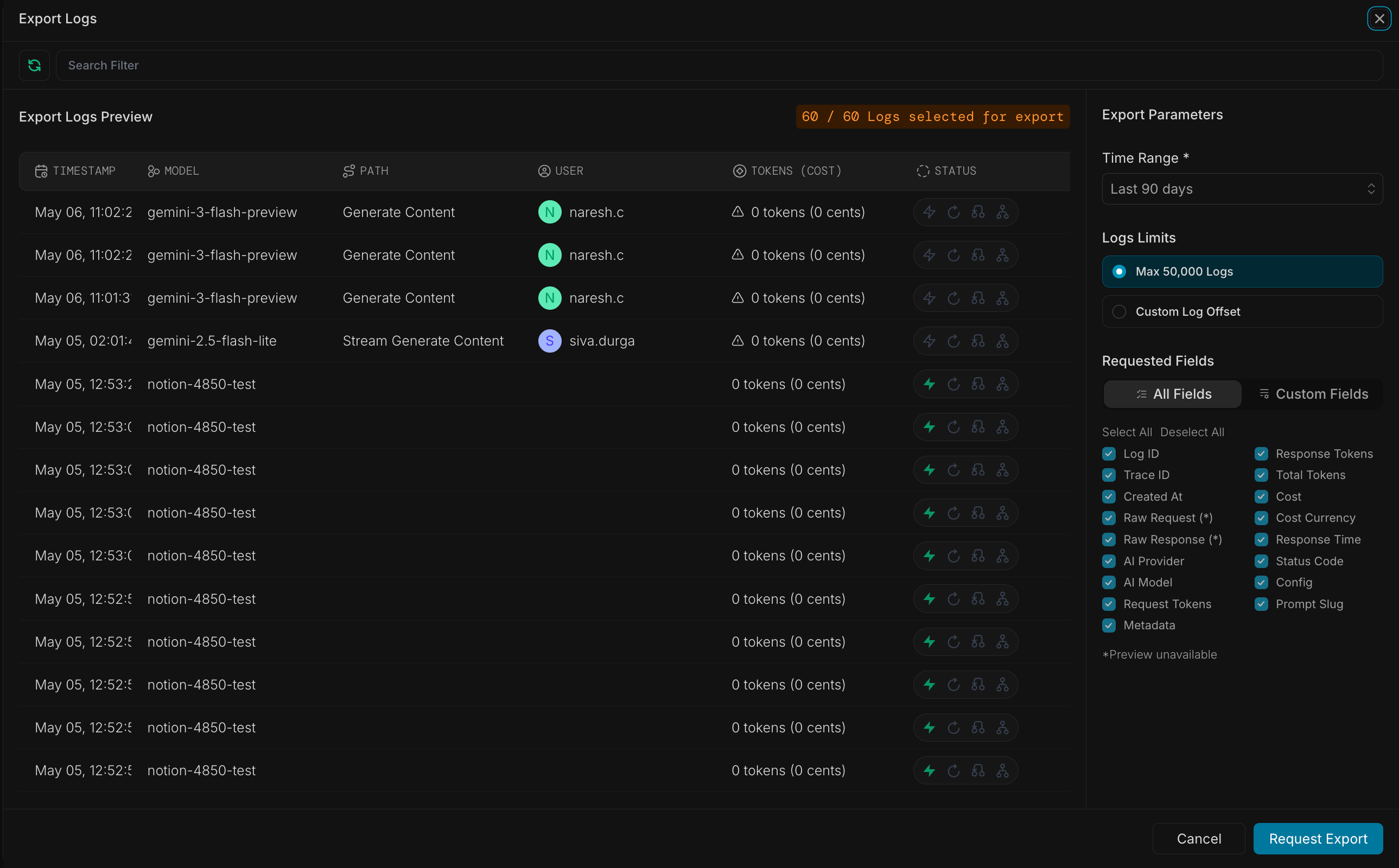 4. After setting your parameters, click **Request Export**.
## Available Export Fields
When configuring your log export, you can select from the following fields:
| Field Name | Description |
| --------------- | ------------------------------------------- |
| ID | Unique identifier for the log entry |
| Trace ID | Identifier for tracing related requests |
| Created At | Timestamp of the request |
| Request | Request JSON payload |
| Response | Response JSON payload |
| AI Provider | Name of the AI provider used |
| AI Model | Name of the AI model used |
| Request Tokens | Number of tokens in the request |
| Response Tokens | Number of tokens in the response |
| Total Tokens | Total number of tokens (request + response) |
| Cost | Cost of the request in cents (USD) |
| Cost Currency | Currency of the cost (USD) |
| Response Time | Response time in milliseconds |
| Status Code | HTTP response status code |
| Config | Config ID used for the request |
| Prompt Slug | Prompt ID used for the request |
| Metadata | Custom metadata key-value pairs |
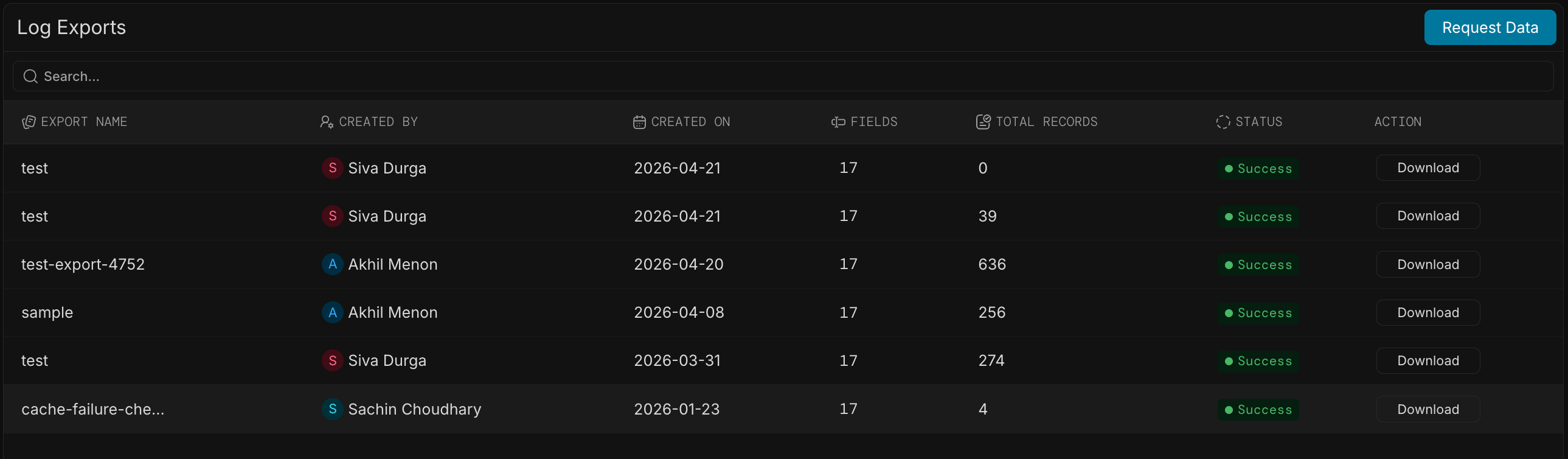
5. Once your export is processed, you'll see it in the exports list with a status indicator:
* **Draft**: Export job created but not yet started
* **Success**: Export completed successfully
* **Failure**: Export job failed. Click on the `Start Again` button to retry the job.
6. Clik on the **Start** button the dashboard to start the logs-export job
7. For completed exports, click the **Download** button to get your logs data file. You can
4. After setting your parameters, click **Request Export**.
## Available Export Fields
When configuring your log export, you can select from the following fields:
| Field Name | Description |
| --------------- | ------------------------------------------- |
| ID | Unique identifier for the log entry |
| Trace ID | Identifier for tracing related requests |
| Created At | Timestamp of the request |
| Request | Request JSON payload |
| Response | Response JSON payload |
| AI Provider | Name of the AI provider used |
| AI Model | Name of the AI model used |
| Request Tokens | Number of tokens in the request |
| Response Tokens | Number of tokens in the response |
| Total Tokens | Total number of tokens (request + response) |
| Cost | Cost of the request in cents (USD) |
| Cost Currency | Currency of the cost (USD) |
| Response Time | Response time in milliseconds |
| Status Code | HTTP response status code |
| Config | Config ID used for the request |
| Prompt Slug | Prompt ID used for the request |
| Metadata | Custom metadata key-value pairs |
5. Once your export is processed, you'll see it in the exports list with a status indicator:
* **Draft**: Export job created but not yet started
* **Success**: Export completed successfully
* **Failure**: Export job failed. Click on the `Start Again` button to retry the job.
6. Clik on the **Start** button the dashboard to start the logs-export job
7. For completed exports, click the **Download** button to get your logs data file. You can
 Currently we only support exporting 50k logs per job. For more help reach out to the Portkey team via [Portkey support](https://support.portkey.ai/forms/customer-portal-ticket-form)
## Export File Details
Exported logs are provided in JSONL format (JSON Lines), where each line is a valid JSON object representing a single log entry. This format is ideal for data processing and analysis with tools like Python's Pandas or other data analysis frameworks.
Each export includes:
* Up to 50,000 logs per export job (as shown in the preview panel)
* All fields selected during the export configuration
* A timestamp indicating when the export was created
## Use Cases for Exported Logs
With your exported logs data, you can:
* Generate custom reports for stakeholders
* Feed data into business intelligence tools
* Identify patterns in user behavior and model performance
You can analyze your API usage patterns, monitor performance, optimize costs, and make data-driven decisions for your business or team.
## Support
If you have any questions or need assistance with the logs export feature, reach out to the Portkey team via [Portkey support](https://support.portkey.ai/forms/customer-portal-ticket-form).
## Related topics
- [Logs Export](/virtual_key_old/product/enterprise-offering/logs-export.md)
- [Delete a Log Export](/api-reference/admin-api/data-plane/logs/log-exports-beta/delete-a-log-export.md)
- [Start a Log Export](/api-reference/admin-api/data-plane/logs/log-exports-beta/start-a-log-export.md)
- [Cancel a Log Export](/api-reference/admin-api/data-plane/logs/log-exports-beta/cancel-a-log-export.md)
- [Download a Log Export](/api-reference/admin-api/data-plane/logs/log-exports-beta/download-a-log-export.md)
Currently we only support exporting 50k logs per job. For more help reach out to the Portkey team via [Portkey support](https://support.portkey.ai/forms/customer-portal-ticket-form)
## Export File Details
Exported logs are provided in JSONL format (JSON Lines), where each line is a valid JSON object representing a single log entry. This format is ideal for data processing and analysis with tools like Python's Pandas or other data analysis frameworks.
Each export includes:
* Up to 50,000 logs per export job (as shown in the preview panel)
* All fields selected during the export configuration
* A timestamp indicating when the export was created
## Use Cases for Exported Logs
With your exported logs data, you can:
* Generate custom reports for stakeholders
* Feed data into business intelligence tools
* Identify patterns in user behavior and model performance
You can analyze your API usage patterns, monitor performance, optimize costs, and make data-driven decisions for your business or team.
## Support
If you have any questions or need assistance with the logs export feature, reach out to the Portkey team via [Portkey support](https://support.portkey.ai/forms/customer-portal-ticket-form).
## Related topics
- [Logs Export](/virtual_key_old/product/enterprise-offering/logs-export.md)
- [Delete a Log Export](/api-reference/admin-api/data-plane/logs/log-exports-beta/delete-a-log-export.md)
- [Start a Log Export](/api-reference/admin-api/data-plane/logs/log-exports-beta/start-a-log-export.md)
- [Cancel a Log Export](/api-reference/admin-api/data-plane/logs/log-exports-beta/cancel-a-log-export.md)
- [Download a Log Export](/api-reference/admin-api/data-plane/logs/log-exports-beta/download-a-log-export.md)